
Spin That Coupe AIVideo Template

  • 1-3 photos
  • 9s
  • 9:16
  • Original sound
  • from 17 credits
  • No watermark

Spin That Coupe AI turns one to three portraits into a nine-second 9:16 changing-room video with synced original audio. Cast friends, pets, or characters as the seated opener on the left, the phone holder by the door, or the final person walking toward the camera. Leave any slot empty to keep the original person.

No prompt to write - add your photo and generate

Watch the Spin That Coupe demo
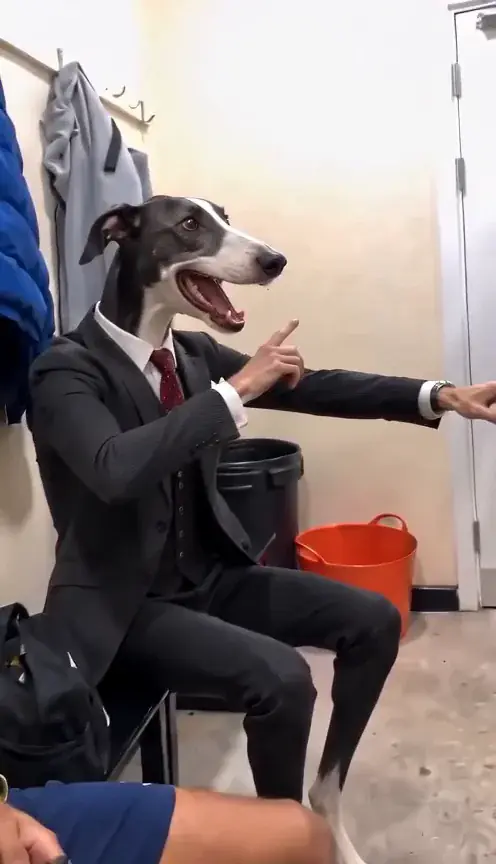
Sample 3-role cast: dog character seated on the left, Shiba Inu holding the phone, and a friend entering through the door.

Roles in this scene

  1. 1Seated on the left
  2. 2Holding the phone
  3. 3Walking toward the camera

Make your video

1 · Seated left
2 · Holds the phone
3 · Walks toward camera

Add 1 to 3 clear photos, one per slot. Empty slots keep the person from the reference. The clip is 9 seconds and follows the reference motion.

37 credits

One-time credit packs available · Failed generations return credits

Cast your photos

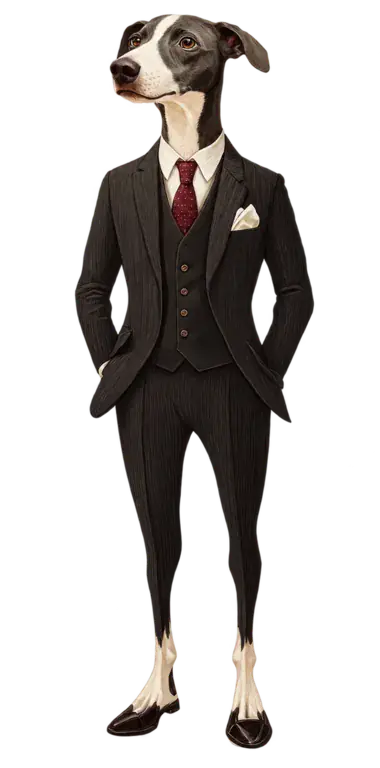
  • Sample cast photo of a dog character in a dark suit and red tie
    Slot 1

    Seated on the left

    Pick the opening role to grab attention in the very first frame while the camera sits on the left bench.

    Works with: Friends, pets, mascots, or expressive reaction portraits

    • Use a bright, front-facing portrait with even lighting.
    • Leave small headroom above the hair or ears so nothing crops.
    Cast this role
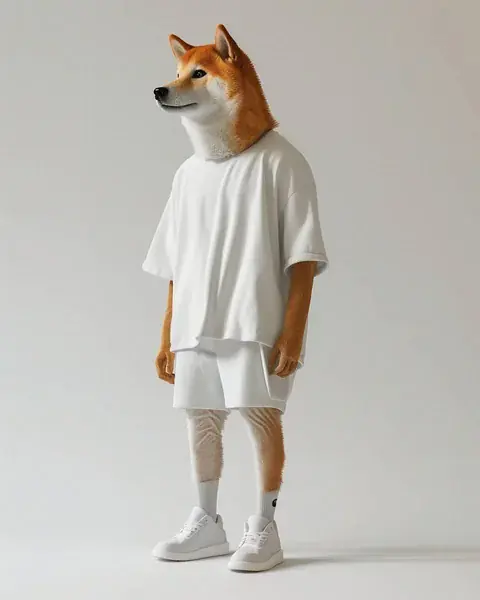
  • Sample cast photo of a Shiba Inu character in a white outfit
    Slot 2

    Holding the phone

    Pick the mid-pan role by the white door. The motion reference handles the arm gesture and phone prop automatically.

    Works with: Co-hosts, pets in outfits, or characters reaction-filming the reveal

    • Choose an unobstructed face looking toward the lens.
    • Avoid sunglasses, heavy filters, or hands covering the cheeks.
    Cast this role
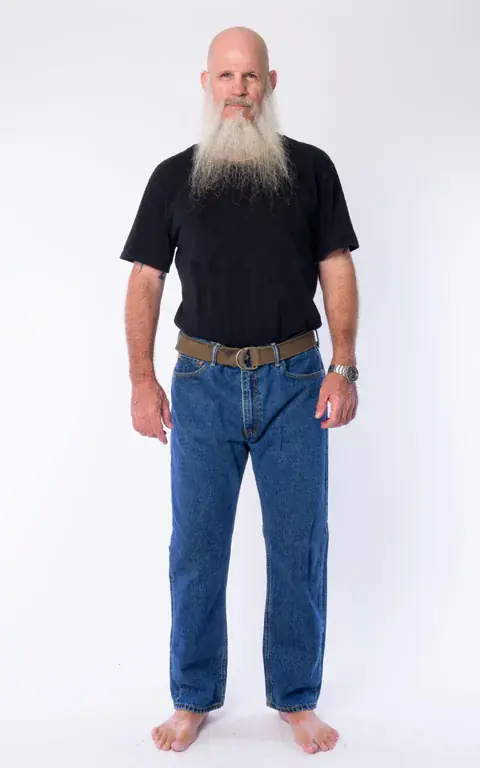
  • Sample cast photo of a bearded man in a black T-shirt and jeans
    Slot 3

    Walking toward the camera

    Pick the closing reveal role. This subject steps through the white doorway and stays centered through the final frame.

    Works with: Your main subject, birthday star, celebrity lookalike, or solo creator

    • Upload a sharp portrait with both eyes and jawline clearly visible.
    • Keep the chin inside the frame and avoid group photos.
    Cast this role

What the Spin That Coupe video looks like

The nine-second clip plays as one continuous horizontal pan inside a changing room. It opens on someone seated on a bench to the left, swings past a second person holding up a phone near a white door, and locks onto a third person stepping out from behind the door and walking straight toward the lens. Because there are no hard cuts between shots, each role reads clearly whether you cast three different friends, put pets in the background roles, or spotlight one main star in the closing walk.

Where the Spin That Coupe trend came from

Spin That Coupe grew out of locker-room and changing-room lip-sync skits on TikTok where a single camera pan reveals three people hitting the beat in sequence. Creators turned the clip into a multi-character remix meme by swapping pets, cartoon figures, and friend groups into the seated, phone-holder, and doorway-entrance beats. Unlike slideshow edits that chop between static photos, the continuous pan preserves the exact camera whip, body timing, and audio sync from start to finish. That one-take structure makes punchlines land much harder when contrasting characters share the same room. Check the sample cast portraits in the Cast section below to match each person to their exact beat before rendering.

Sound
Original Spin That Coupe changing-room audio
Model
Seedance 2.5
Output
9:16 MP4 (9s)

How to make the Spin That Coupe video here

  1. Add your photos

    Upload 1 to 3 clear photos. Each slot maps to one person in the Spin That Coupe scene: Seated on the left, Holding the phone, Walking toward the camera.

  2. Generate

    Check the credit cost and press Generate. The template supplies the scene, motion, and timing, so you do not write a prompt.

  3. Download and post

    Preview the 9-second vertical clip, then download the MP4 from the result or your library.

Make it by hand

Prefer writing your own multi-reference prompt manually? Load a vertical changing-room reference clip alongside one to three character portraits in Seedance 2.5, keep the output duration at nine seconds in 9:16 vertical aspect ratio, and map each uploaded image index to its exact beat in the camera pan. Explicitly instruct the model to keep unmapped roles unchanged, preserve room lighting and wardrobe cues, and avoid inventing extra background faces.

Seedance 2.5 reference prompt
Using @Video1 as the motion and camera reference, replace the cast in the nine-second vertical changing-room pan:
- @Image1 is the person seated on the bench on the left in the opening shot.
- @Image2 is the person standing near the white door holding up a phone.
- @Image3 is the person walking out from behind the white door toward the camera through the final frame.
Keep every assigned face and identity consistent, preserve the original actions, wardrobe silhouettes, room lighting, and camera timing, and output one continuous 9-second 9:16 video.

Skip manual setup and cast your photos in one click above.

What goes wrong and how to fix it

  • My photo showed up on the wrong person in the room

    Match your upload slots to the scene order: slot 1 sits on the left bench, slot 2 holds the phone by the white door, and slot 3 walks through the doorway at the end.

  • The person walking in blurs or loses likeness near the end

    Swap slot 3 for a high-resolution, evenly lit portrait where the full chin, hairline, and both eyes are clearly visible without motion blur or sunglasses.

  • I only want to replace one friend instead of all three

    Upload a single photo into the slot you want to star in and leave the other two slots empty. Empty slots automatically preserve the people from the reference clip.

Spin That Coupe questions

Can I make Spin That Coupe AI with just one photo?

Yes. Drop a single portrait into whichever role you want to replace and leave the other two slots blank. The generator keeps the remaining people from the reference clip intact so solo creators can remix the trend fast.

Which slot gets the big closing reveal at the camera?

Slot 3, Walking toward the camera, gets the hero finish. That person steps out from behind the white door right after the phone pan and walks forward into close-up for the ending beat.

Does my photo for slot 2 need to be holding a phone?

No. Any clean, front-facing portrait works well for slot 2. The motion reference controls the raised arm, phone prop, and camera sweep while mapping your chosen face or character onto the person standing beside the white door.

Can I cast pets, mascots, or illustrated characters?

Yes. Clear photos of dogs, cats, plushies, or stylized characters work great in all three slots, especially when the face, eyes, and head shape stand out cleanly against a simple, well-lit background without clutter.

Why does the exported MP4 already have sound?

After the 9-second visual clip finishes rendering on Seedance 2.5, EveryAITrend automatically mixes in the synchronized Spin That Coupe reference audio track so your download is ready to post immediately.

How should I check quality before posting to TikTok or Reels?

Watch the quick camera pan from slot 2 by the white door into slot 3 stepping forward. Verify that your subject keeps crisp facial consistency as they move closer to the lens.

How much does the Spin That Coupe video cost?

It starts at 17 credits. The default Seedance 2.5 render at 720p uses 37 credits. The generator shows the exact cost before you start.

What happens if a render fails?

If the render fails, the generation credits go back to your balance automatically. You can try again with different photos.

What file do I get?

A 9-second vertical MP4. Download it from the result or from your library.

Can I make it on my phone?

Yes. The generator works in a mobile browser. Upload photos from your camera roll and download the finished clip.

What happens to my photos?

See the privacy policy for how uploads are handled. Only upload photos you have permission to use.

Updated 2026-11-18